మంగళవారం, నవంబర్ 15, 2011

డీ-ఫ్రాగ్ మెంట్ అంటే ఏంటి? ఎలా చేయాలి? ఎందుకు చేయాలి?


డీ-ఫ్రాగ్ మెంట్ అంటే ఏంటి? ఎలా చేయాలి? ఎందుకు చేయాలి

Featured Image
డీఫ్రాగ్‌మెంటేషన్
http://www.linuxfortravelers.com/
http://www.linuxfortravelers.com/files/windows-defrag.png
లక్ష్యం: 
ఈ టపా చదివిన తరువాత, మీరు డీఫ్రాగ్‌మెంటేషన్ అనగా ఎమీటి? ఎందుకు చేయాలి? విండోస్‌లో దీన్ని ఎలా చేయాలి? అన్న విషయలను తెలుసుకొంటారు.
డీ-ఫ్రాగ్ అంటే ఏమిటి?
ఏదైనా పెద్ద ఫైల్ ను మీరు మీ కంప్యూటర్ లో సేవ్ చేసినపుడు అది ఒకే చోట సేవ్ కాకుండా, ముక్కలు ముక్కలుగా వివిద ప్రాంతాల్లో ఉంచబడుతుంది. క్రింది బొమ్మలో, ఒక్కో రంగూ ఒక్కో ఫైల్ అన్నమాట, అది de-Fragment  చేయటానికి మునుపు ఎలా ఉన్నాయి, ఎలా de-Frag నిర్వహించబడుతుంది, తరువాత ఎలా మరుతాయి అన్న అంశాలకు ఉదాహరణ చూడగలరు.
http://en.wikipedia.org/wiki/File:FragmentationDefragmentation.gif
ఈ ఇబ్బంది లినక్స్ యూజర్లకు ఉండదు. ఎందుకంటే లినక్స్ లో ఎప్పటికప్పుడు De-fragmentation దానంతటదే అవుతూ ఉంటుంది.
ఎందుకు చేయాలి?
కంప్యూటరు ఇంకాస్త వేగంగా పని చేసే అవకాశం ఉంది. మరియూ వీలైనంత ఖాళీని ఒకే చోటకు చేర్చగలదు.
విండొస్‌లో ఎలా చేయాలి?
1. My Computerకు వెళ్ళి, మీరు ఏ పార్టిషన్ను డీ-ఫ్రాగ్మెంట్ చేయాలో దాన్ని Right-Click చేసి Propertiesను ఎంచుకోండి.
2. కొత్తగా వచ్చిన విండోలో Tools అనే ట్యాబులో Defragment Now అన్న బటను ఒకటి ఉంటుంది, దాన్ని నొక్కండి.
పూర్తి కావటానికి కొన్ని నిమిషాల నుండీ కొన్ని గంటల సమయం తీసుకుంటుంది.

విండోస్‌ మొత్తం తెలుగులో వాడుకోవడం


విండోస్‌ మొత్తం తెలుగులో వాడుకోవడం


Featured Image
తెలుగులోకి మార్చబడిన విండోస్ ఎక్స్.పీ ఆపరేటింగ్ సిస్టమ్‌
గోపాలకృష్ణ
టెక్‌సేతు
లక్ష్యం: 
ఈ పాఠ్యాంశంలో విండోస్ ఆపరేటింగ్ సిస్టమ్‌ ని తెలుగులోకి ఎలా అనువదించుకోవాలో తెలుసుకుందాం. అంటే ప్రస్తుతానికి ఇంగ్లీషులో కనబడేవన్నీ ఇకపై తెలుగులో కనబడతాయన్నమాట. ఐతే, మీరు ఇంగ్లీషులో రాసుకున్న ఫైల్స్, వాటికి, ఫోల్డర్లకి ఇంగ్లీషులో పెట్టుకున్న పేర్లు వగైరాలు మాత్రం అలాగే ఉంటాయి సుమా! విండోస్‌ ఇన్‌స్టాల్‌ చేసుకోవడంతోనే వచ్చేవి మాత్రమే అనవదింపబడతాయి. మీరు స్వయంగా తర్వాత రాసుకున్నవి, కాపీ చేసుకున్నవి ఏవీ మారవు. కాబట్టి మీరు నిరభ్యంతరంగా, నిస్సంకోచంగా ఈ పాఠ్యాంశాన్ని అనుసరించవచ్చు.
మీరు చేయవల్సిందిదీ...
  • మీరు ఈ లంకెకు Internet Explorer లో వెళ్ళి Localization Language Offerings అన్న లంకె మీద నొక్కితే అక్కడ ప్రపంచపఠం ఒకటి ప్రత్యక్షమౌతుంది.సైటులో తగిన లంకెను ఎంచుకోవటం చూపించే చిత్రపఠం
  • భారతదేశం ఉన్న రంగు మీద నొక్కితే పక్కనే ఉన్న Step 2 లో Asian Languages అని వస్తుంది. దాని మీద నొక్కితే తెలుగు అని కనబడుతుంది. అది ఎంచుకోండి.
సైటులో  దేశాన్ని ఎంచుకోవటం చూపించే చిత్రపఠంసైటులో  భాషను ఎంచుకోవటం చూపించే చిత్రపఠం

  • అదవ్వగానే కింద ఉన్న Step 3 లో, మీ సిస్టమ్‌ విస్టా ఐతే విస్టా, ఎక్స్.పీ ఐతే ఎక్స్.పీ ఎంచుకోవాలి.
సైటులో  సిస్టమ్‌ను ఎంచుకోవటం చూపించే చిత్రపఠం
  • ఒకవేళ ఇక్కడ కింద చూపిన విధంగా కాకుండా, search results ఉన్న పేజీ వస్తే ఈ లంకె మీద నొక్కండి."ఇది తెలిసినప్పుడు ఈ ముక్కేదో ముందే చెప్పొచ్చుకదా, ఆ సుత్తంతా ఎందు"కంటారేమో, మీరు ఇది ఎక్కడ దొరుకుతుందో తెలుసుకోగలిగితే భవిష్యత్ లో స్వయంగా కొన్ని సమస్యలు పరిషరించుకోగలుగుతారు, అందుకన్న మాట!
సైటులో  సిస్టమ్‌ను ఎంచుకోవటం చూపించే చిత్రపఠం
  • అదయిన తర్వాత అసలు మీ కంప్యూటర్లో ఉంది నకిలీ విండోసా, డబ్బెట్టి కొనుక్కున్న నికార్సైన విండోసా అని పరీక్షించడానికి ఏవో చిన్నచిన్నవి కొన్ని చేయమంటుంది. ఏమీ అనుకోకుండా, గొణుక్కోకుండా చేసేయ్యండి.
  • ఆ తర్వాత డౌన్లోడ్ మొదలవుతుంది. పూర్తయ్యాక రన్‌ చేయండి. రన్‌ చేసినప్పుడు ఈ లంకెలో చెప్పిన విధానం అమలు చేయని పక్షంలో మధ్యలో XP CD అడగొచ్చు. ఆడిగితే పెట్టండి.
  • ఇన్‌స్టాల్‌ చేశాక సిస్టమ్‌ రీబూట్ చేయమంటుంది. చేశాక మీ తెలుగు కంప్యూటర్ సిద్దం అయినట్టే!
అయితే, అన్నీ తెలుగులో కనబడక పోవచ్చు. చాలా వరకు తెలుగులోనే ఉంటాయి కాని, విండోస్‌తో రానివి, మీరు స్వయంగా పెట్టుకున్న  కొన్ని సాఫ్ట్వేర్లు మాత్రం ఇంగ్లీషు లోనే ఉంటాయి. విండోస్‌ లో ఉన్నవాటికే ఒకవేళ తెలుగు పదం లేకపోతే, ఆ పదం తెలుగులో మీకు తెలిస్తే వాళ్ళకు ఇక్కడికి  వెళ్ళి మీరే చెప్పొచ్చు. దానికివిండోస్‌ లైవ్‌ ఐడి కావాలి. అది ఆ సైటులో ఉచితంగానే పొందవచ్చు. మీరు చెప్పినట్టైతే తర్వాత వచ్చే వర్షన్‌ లో ఆ పదం పెడతారు. లేదంటే అది వాళ్ళ దృష్టికి వెళ్ళక ఎప్పటికీ అనువాదం కాకపోవచ్చు.

విండోస్ ఎక్స్.పీ ఇన్‌స్టాల్ చేసే విధానం


విండోస్ ఎక్స్.పీ ఇన్‌స్టాల్ చేసే విధానంi

Featured Image
ఎక్స్.పీ లోగో
Dhjiz
flickr.com/photos/dhjiz/2472208469
లక్ష్యం: 
మైక్రోసాఫ్ట్ విండోస్ ఎక్స్.పీ మీ సిస్టంలో ఇన్‌స్టాల్ చేయడం ఎలానో తెలుసుకుందాం, తెరపట్టుల సహాయంతో.
  • మొదట BIOS లో first boot device ని cdrom/rw(or DVD) కి సెట్ చెయ్యండి. (లేక పొతే సిస్టం స్టార్ట్ చేసికూడా  boot device ఎంచుకోవచ్చు. కానీ ఒక్కో సిస్టం కి ఒక్కో కీ ఉంటుంది, మోడల్ ని బట్టి)
  • ఇప్పుడు విండోస్ సీడి cd/dvd డ్రైవ్ లో ఉంచి సిస్టం రీస్టార్ట్ చెయ్యండి.
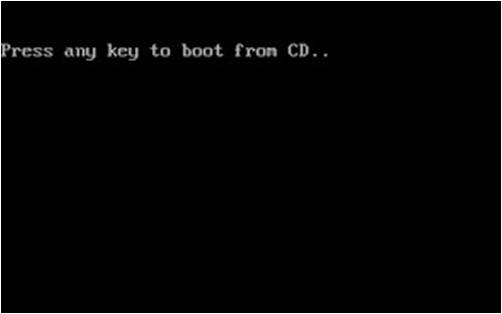
  • ఇప్పుడు సిస్టం press a key to boot from cd/dvd  అని చూపుతుంది. అలా చూపగానే ఒక కీ నొక్కండి.
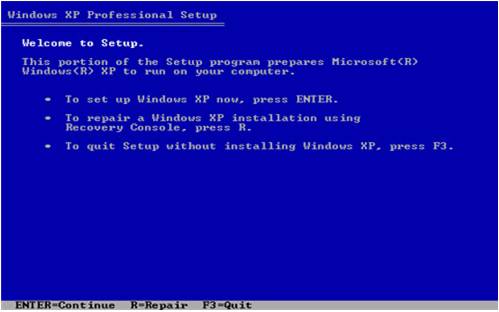
  • ఇప్పుడు సీడి కొన్ని ఫైల్స్ ని లోడ్ చేసి ఒక blue screen చూపుతుంది. ఇప్పుడు అసలు ఇన్స్టాల్ ప్రాసెస్ మొదలవుతుంది.
  • ఇప్పుడు install xp, repair xp అని రెండు ఆప్షన్స్ చూపుతుంది. (మనం ప్రస్తుతం ఇన్స్టాల్ చేస్తున్నాం. అందుకనే మొదటి ఆప్షన్ ఎంచుకోండి.)
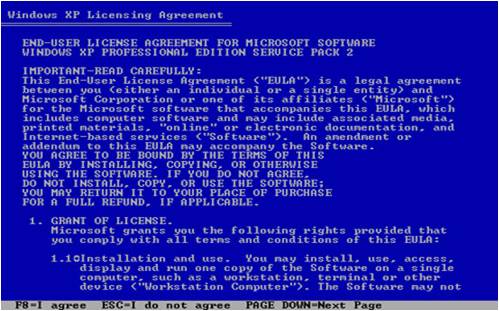
  • ఇప్పుడు license agreement page చూపుతుంది. F8 బటన్ నొక్కండి.
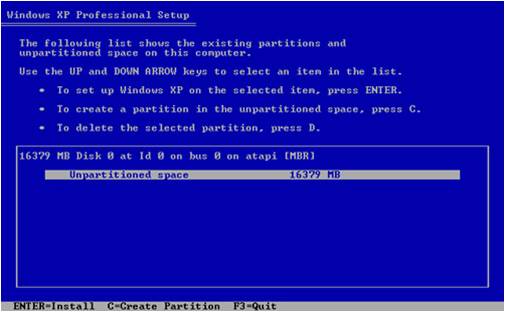
  • ఇప్పుడు హార్డ్ డ్రైవ్ చెక్ చేసి, ఉన్న పార్టిషన్స్ చూపుతుంది.(కొత్తగా ఇన్స్టాల్ చేస్తుంటే పార్టిషన్స్ ఉండవు. మనమే చేసుకోవాలి.)
  • ఒకవేళ ఉన్న పార్టిషన్ ని తీసేసి కొత్తగా సృష్టించుకోవాలంటే, ఏదైతే తీసేయ్యాలనుకుంటున్నారో దాన్ని ఎంచుకుని,  D నొక్కండి. అది, ఖచ్చితంగా తీసేయోచ్చా అని అడుగుతుంది. తీసెయ్యాలి అనుకుంటే L కొట్టండి. లేకపొతే ఎస్కేప్ కొట్టి వెనక్కువెళ్ళండి.
  • కొత్తగా పార్టిషన్స్ చెయ్యడానికి, Unpartitioned Space మీదకి వచ్చి, నొక్కండి.
  • ఇప్పుడు మొత్తం స్పేస్ లో ఎన్ని పార్ట్టిషన్స్ చెయ్యాలో అంచనా వేసి, ఈ పార్టిషన్ కి ఎంత స్పేస్ ఇవ్వాలో నిర్ణయించుకుని, ఆ నెంబర్ ఇవ్వండి. (స్పేస్ మెగాబైట్లు గా చూపుతుంది. ఉదాహరణకి, మీరు 15000 అని ఇస్తే ఆ డ్రైవ్ 15GB ఉంటుంది)
  • తర్వాత os ఇన్స్టాల్ చేయడానికి డ్రైవ్ ఎంచుకోండి.(సాధారణంగా మొదటి డ్రైవ్ ఎంచుకుంటారు.)
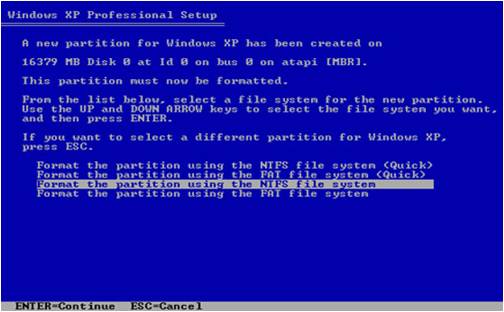
  • ఇప్పుడు డ్రైవ్ ఫార్మటు చూపుతుంది. ఇక్కడ ntfs(quick format) ఎంచుకోండి.
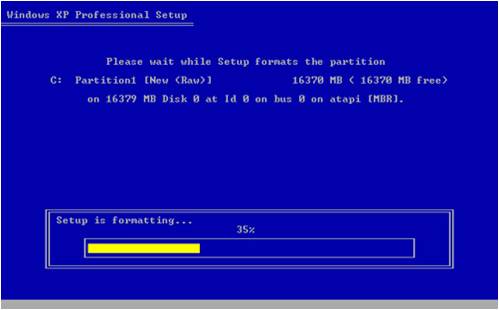
  • ఇప్పుడు డ్రైవ్ ఫార్మాట్ అయ్యి ఫైల్ సిస్టం లోడ్ అవుతుంది.
  • తర్వాత OS ఫైల్స్ డ్రైవ్ లోనికి కాపీ అవుతాయి. మొత్తం ప్రాసెస్ పూర్తైన తర్వాత సిస్టం రీస్టార్ట్ అవుతుంది.
  • ఇప్పుడు డ్రైవ్ లో లోడ్ ఐన ఫైల్స్ నుండి ఇన్స్టలేషన్ కొనసాగుతుంది. (స్క్రీన్ GUI గా మారుతుంది.)
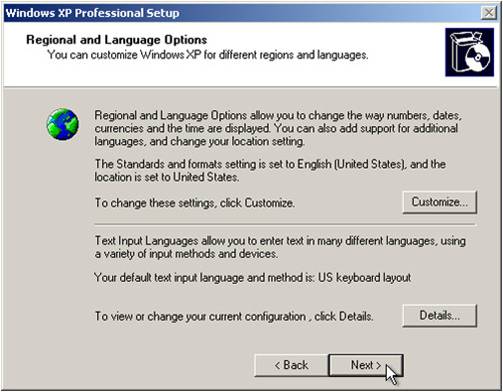
  • ఇక్కడ సిస్టం language selection, keyboard layout selection అడుగుతుంది.english(US) ఎంచుకోండి. default గా అదే ఉండి ఉంటుంది చూడండి (తెలుగు default గా ఉండదు ఎక్స్.పీ లో).  next నొక్కితే పేరు, ఆర్గనైజేషన్‌ వివరాలు అడుగుతుంది, ఇంట్లో పీసీ ఐతే ఆర్గనైజేషన్‌ ఏదోటి ఇచ్చేయ్యండి.
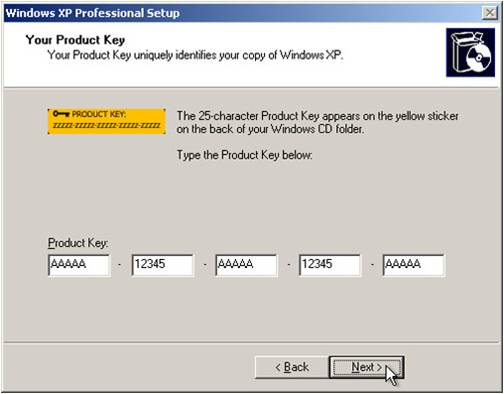
  • తర్వాత product key అడుగుతుంది. సీడి పైన ఉన్న 25 digit key ని ఎంటర్ చెయ్యండి.
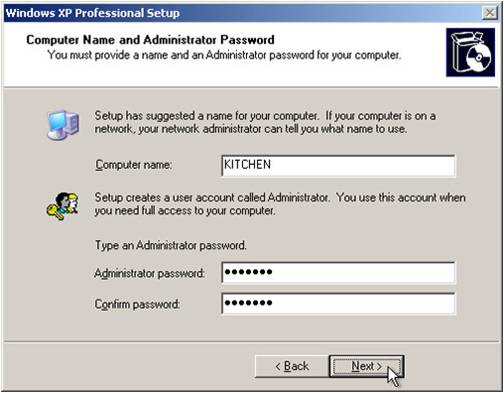
  • ఇప్పుడు System Name, Administrator Password అడుగుతుంది. ఆ రెండు ఎంటర్ చెయ్యండి.(Administrator Password ఇవ్వక పోయిన పర్వాలేదు. కాని ఇవ్వడమే మంచిది.)
  • ఇప్పుడు date, time, time zone వివరాలు అడుగుతుంది. time zone ని new delhi, kolkata, mumbai, chennai(GMT+5:30) గా ఎంచుకోండి. 
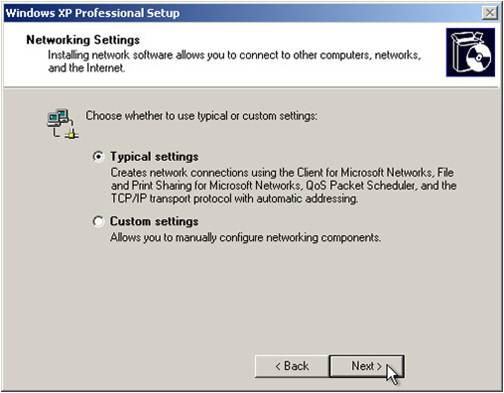
  • ఇప్పుడు  network setup చూపుతుంది. ఇక్కడ domain default settings గా ఎంచుకోండి. Next నొక్కితే మీ workgroup ఏంటో అడుగుతుంది, తెలిస్తే మీకు కావాల్సిన గ్రూపు పేరే ఇవ్వండి, లేకుంటే WORKGROUP అని ఉంచేయ్యండి.
  • ఇప్పుడు next నొక్కగానే మొత్తం ఇన్స్టలేషన్ పూర్తవుతుంది.
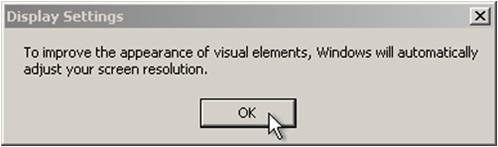
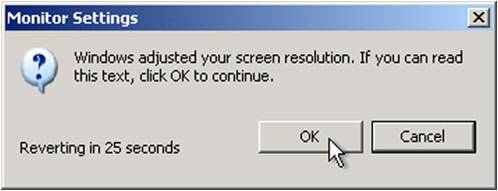
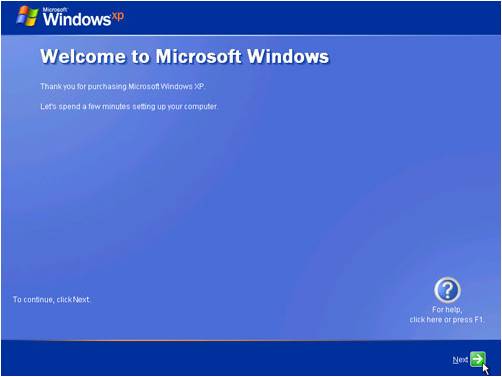
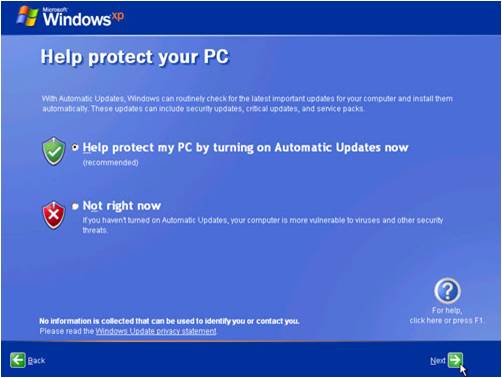
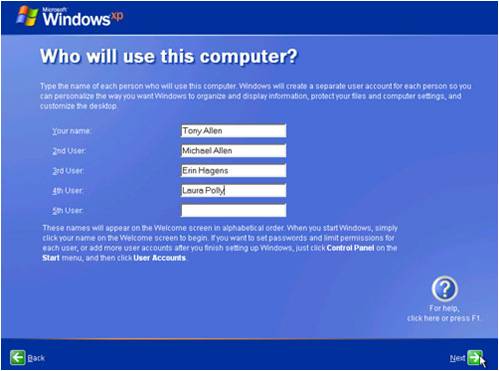
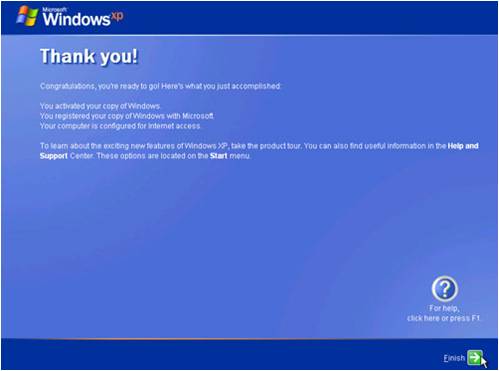
  • తర్వాత సిస్టం రీస్టార్ట్ అవుతుంది. ఇప్పుడు అన్నిటికి Ok/Next కొట్టుకుంటూ వచ్చేయ్యండి (క్రిందున్న తెరపట్టులు చూడండి). చివరి స్టెప్పులో username ఎంటర్ చేయండి. తర్వాత వచ్చే network checkni skip చెయ్యండి.(అదే ఉత్తమం)
  • ఇక్కడ నెట్వర్క్ చెక్ వస్తుంది, దాన్ని దాటవేసేయ్యండి(skip).
  • ఇప్పుడు మీ login screen, desktop కాన్ఫిగర్ అవుతాయి. తర్వాత మీ ఎకౌంటు లోనికి loginఅవుతుంది.
  • దీనితో ఇన్స్టలేషన్ పూర్తి అవుతుంది.
  • సిస్టం పూర్తిగా పని చేయడానికి మీకు సిస్టం తో పాటు ఇచ్చిన system driver cd నుంచి డ్రైవర్ సాఫ్ట్వేర్లను ఇన్స్టాల్ చేయండి.
ఇప్పుడు విండోస్ ని  తెలుగుతో వాడుకోవడం ఎలాగో ఇక్కడ తెలుసుకోండి. తెలుగు చదవగలిగితే చాలు అనుకుంటే ఇది చూడండి. విండోస్ లో తెలుగు టైప్ చేయాలంటే ఈ పాఠ్యాంశం చూడండి. ఈ పాఠ్యాంశానికి మూలం మైక్రోసాఫ్ట్ వారి ఈ సమాచారం అని గమనించగలరు.

సోమవారం, నవంబర్ 14, 2011

Nokia cell phone hacking codes

I had previously published an article on How to Spy a Cellphone,i though to publish some more Cellphone Hacks so Here are some of the Nokia cell phone hacking codes i am posting,almost all of them work
These 3 codes work on 90% of Nokia phones;


*#06#=Display the IMEI (Standard GSM command, works on all phones)
*#0000#=Display the firmware version and date


*#92702689#=Here you can view the S/N and the IMEI as well as the life timer (newer models). The date the phone left the factory and the date it was purchased. If yourphone has been repaired the date of the repair is also visible. You will need to turn the phone off to exit this menu. Newer phones simply require you to press ok.

The following codes are specific to older series 40 phones; (Entering the following codes will restart the phone)
*4720#=Activates Half Rate, Half Rate is 5.6kbit/s and uses half the bandwidth at the cost of call quality. Network operators often activate half rate on overloaded towers during peak times to save costs.#4720#=Deactivates Half Rate*3370#=Activates Enhanced Full Rate, EFT attempts to match wire quality. The calls are 12.2kbit/s and are not supported by all operators. It is compatibale with the hightest AMR mode.#3370#=Deactivates Enhanced Full Rate*#746085685#=Display the SIM clock status

The following codes are phone specific or phase related;
*#7220#=Activate the GPRS PCCCH support (Packet Common Control Channel)*#7230#=Deactivate the GPRS PCCCH support*#7760#=Display the manufacturing serial number

This only works on the 3310 and 3330;
*#67705646#=Clear the operator logo, the logo will be reset to the default network operator logo.

The following codes work on newer series 40 & series 60/80 phones;
*#2820#=Display the Bluetooth MAC address (Phone must have a built in bluetooth adapter)*#7370925538#=Reset the mobile wallet (Phone must have the mobile wallet feature)*#7370#=Soft-format the memory (Symbian)*#7780#=Reset to factory defaults, confirmation required (also known has a Hard-format), all phone contents will be wiped clean 

How to manually remove Trojan Horse


Trojan, sometimes referred to as a Trojan horse, is non-self-replicating malware that appears to perform a desirable function for the user but instead facilitates unauthorized access to the user's computer system. 

Is trojan virus Dangerous?
The short answer is yes, and the long answer is sometimes, because there are near a thousand different trojan horse viruses and they all will most likely alter your computer in some way or another.

Working of Trojans!


In this tutorial i will tell you a method through which you can manually remove a Trojan horse,Sometimes  atrojan horse disables your antivirus and prevent any other Antivirus from being installed

1-Go to my computer
2-Drive c
3-Program Files
4-Common flies
5-Microsoft shared
6- Ms info or msinfo 32

 The virus might hide it self in startup so delete the temporarily internet file

Is there any way to prevent Trojan attack?

I have wrote an article on How to secure your network from trojans this will explain on How to keep Trojans out of your PC